 InvoiceCraft
Shopify VAT invoices: what they need to include
· 4 min read
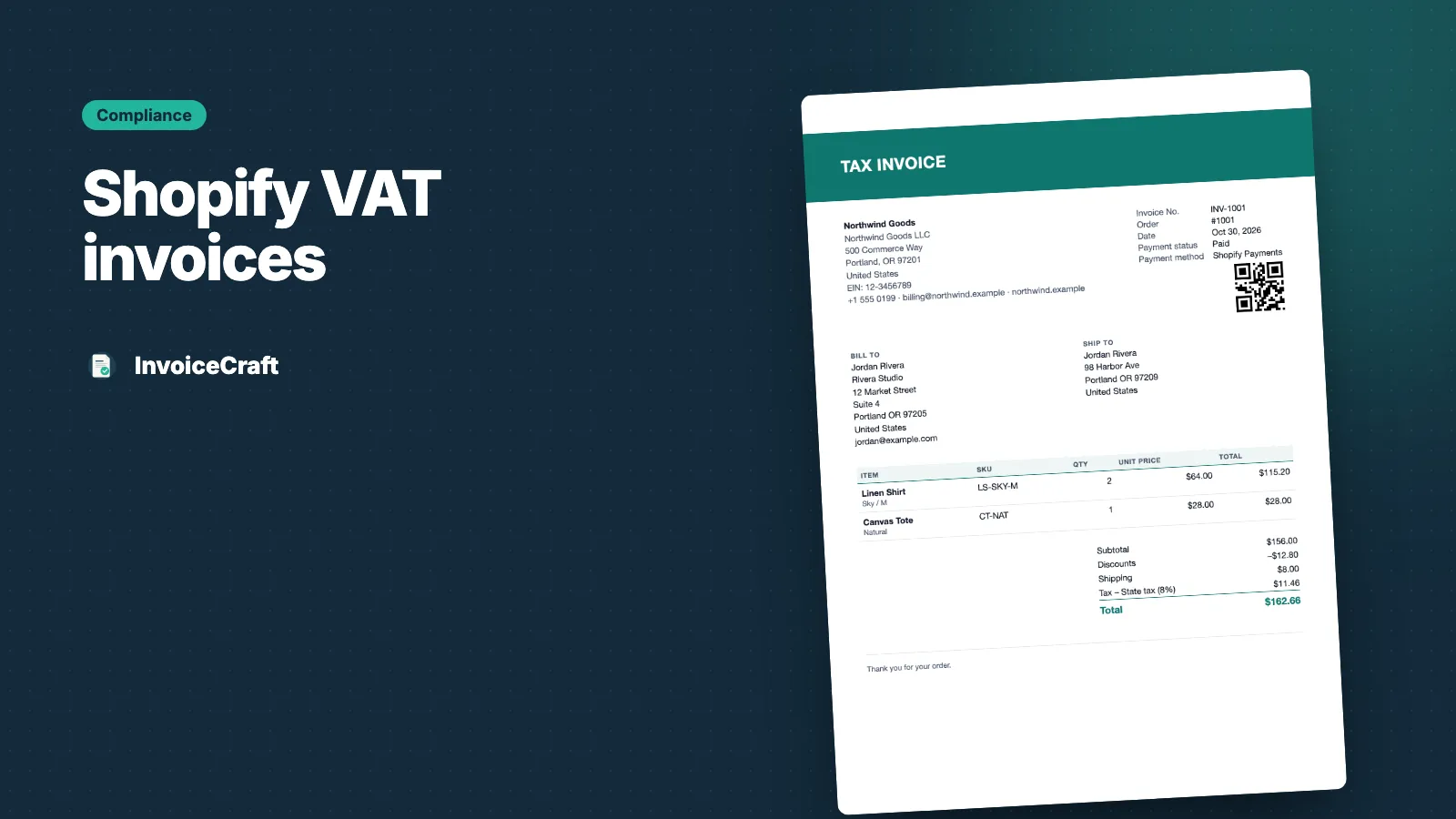
If you sell in the UK or the EU, your business customers will ask for a VAT invoice. Shopify’s order confirmation email isn’t one. This guide covers what a VAT invoice usually needs to contain, and how to produce one for every Shopify order without editing PDFs by hand.
This is general guidance, not legal or tax advice. VAT rules differ by country and by type of sale. Check the requirements that apply to your business with your accountant or tax authority.
What a VAT invoice usually includes
The exact rules vary, but in the UK and across the EU a full VAT invoice generally needs:
- A unique, sequential invoice number — with no gaps or duplicates
- The issue date and, where it differs, the date of supply
- Your business name and address
- Your VAT registration number
- The customer’s name and address
- A description of the goods or services, with quantities
- The unit price excluding VAT
- The VAT rate for each item or group of items
- The total excluding VAT, the VAT amount, and the total including VAT
- The currency of the invoice
Some sales need extra wording or details — for example business-to-business sales between EU countries under the reverse charge, where the customer’s VAT number and a reverse-charge note are usually required.
Refunds need a credit note
You shouldn’t edit or delete a VAT invoice after it’s issued. When you refund all or part of an order, you issue a credit note that references the original invoice. Your records then show both the sale and the correction.
How to set up VAT invoices in InvoiceCraft
1. Add your VAT number
In Settings → Business details, enter your legal name, address and tax ID. Set the label to match your country — for example VAT number or USt-IdNr. — and it’s printed on every invoice, receipt and credit note.
You can also turn on a check that warns you before issuing an invoice if the tax ID is missing.
2. Show the tax breakdown
In the template editor, choose how tax appears:
- Summary — tax totals at the bottom, with the rate for each tax line
- Per line — a tax column on every line item
Line items can show unit price, discount, tax and total columns. Amounts stay in the order’s currency.
3. Set up sequential numbering
Under Settings → Numbering, choose a prefix such as INV- and a starting number. Invoices, receipts and credit notes each have their own series. Numbers only move forward and are never reused. Read more in sequential invoice numbering explained.
4. Issue credit notes for refunds
Issued documents are permanent snapshots — they never change after they’re created. When an order is refunded, issue a credit note for that refund from the order page, or for many orders at once with a bulk job. It references the original invoice number and shows the refund reason.
5. Send invoices in the customer’s language
Invoice labels are available in English, Spanish, French, German, Italian, Portuguese and Dutch. On the Pro plan, the language follows each customer’s locale automatically.
6. Email them automatically
On Starter and Pro, an automation rule can email the VAT invoice as a PDF as soon as an order is paid.
A note on customer VAT numbers
InvoiceCraft prints your VAT number, but it doesn’t have a dedicated field for the customer’s VAT number. If you sell B2B and need it on the invoice, ask customers to add it in the order note at checkout and turn on the order note field in your invoice template.
VAT invoice checklist
- Sequential invoice number with no gaps
- Issue date
- Your name, address and VAT number
- Customer name and address
- Items, quantities and unit prices excluding VAT
- VAT rate and VAT amount
- Totals excluding and including VAT
- Credit notes for every refund
InvoiceCraft covers the invoice side on every plan — start free with 25 orders a month.