 InvoiceCraft
How to send automatic invoices on Shopify
· 5 min read
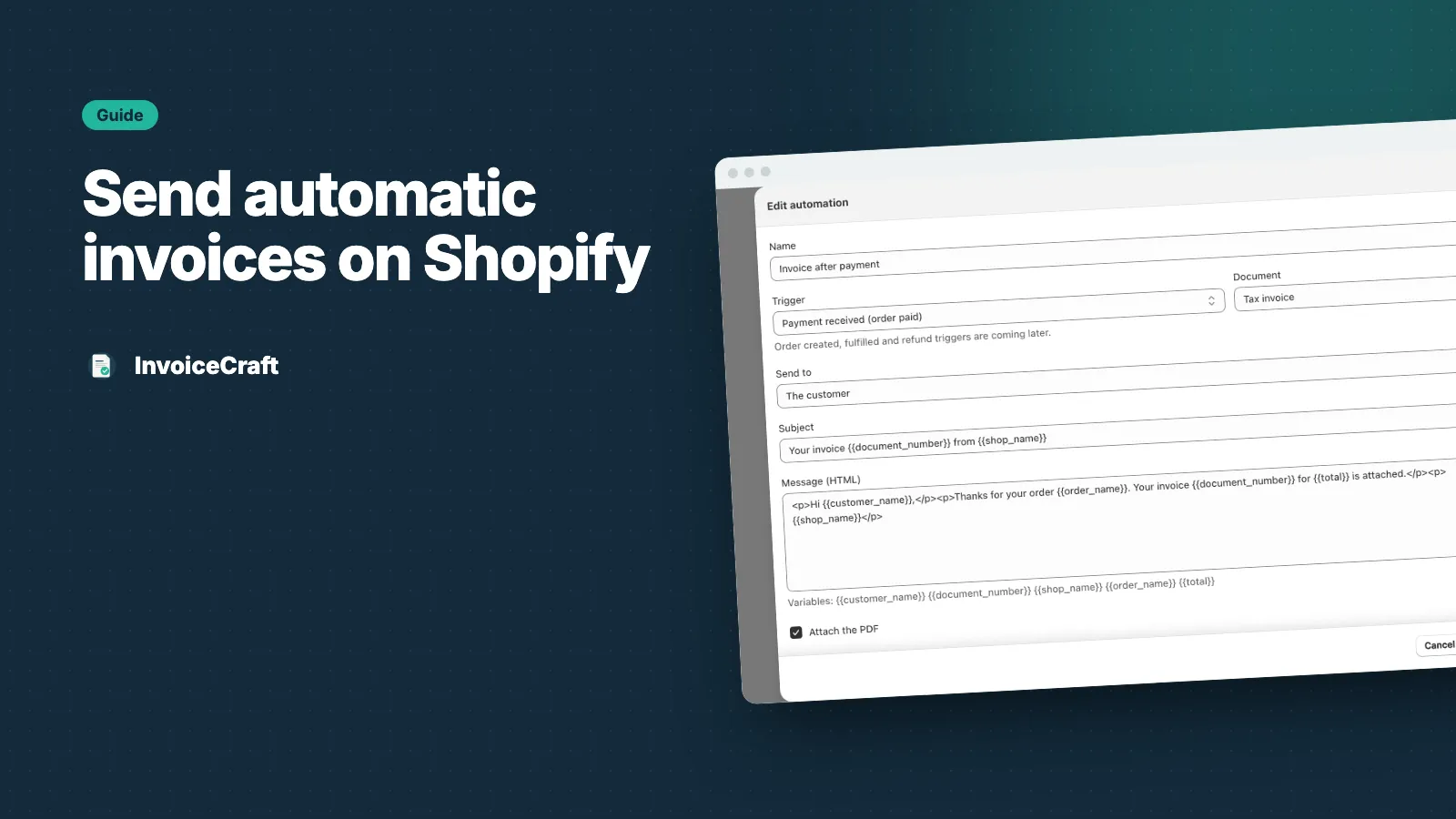
Shopify sends an order confirmation, but many customers — especially businesses — want a proper invoice with your company details, tax breakdown and a stable invoice number. Sending those by hand doesn’t scale. Here’s how to automate it.
1. Add your business details
Open Settings → Business details and fill in your legal name, address and tax ID. These are printed on every document. Upload your logo while you’re there.
2. Choose your invoice design
Go to Templates and open the default invoice. Pick a layout (Minimal, Modern or Compact), set your brand colors and font, and check the live preview on the right. Save when it looks right.
3. Set up numbering
Under Settings → Numbering, choose a prefix such as INV- and the number to start from. Numbers are sequential and never reused, so your records stay gap-free.
4. Create an automation rule
Open Email automation and create a rule:
- Trigger: Order paid
- Document: Tax invoice
- Send to: Customer email
- Subject:
Your invoice {{document_number}} from {{shop_name}} - Attach PDF: On
You can add filters — for example, only orders over a certain total, with a specific tag, or shipping to certain countries.
5. Test before going live
Use Dry run on a recent order to see exactly what would be sent, then Send test email to yourself. When you’re happy, switch the rule on.
That’s it. From now on, every paid order gets its invoice automatically, and you can see each send in the history.
Email automation is available on the Starter and Pro plans. Starter includes one rule; Pro includes ten.