 InvoiceCraft
How to create a credit note for a Shopify refund
· 4 min read
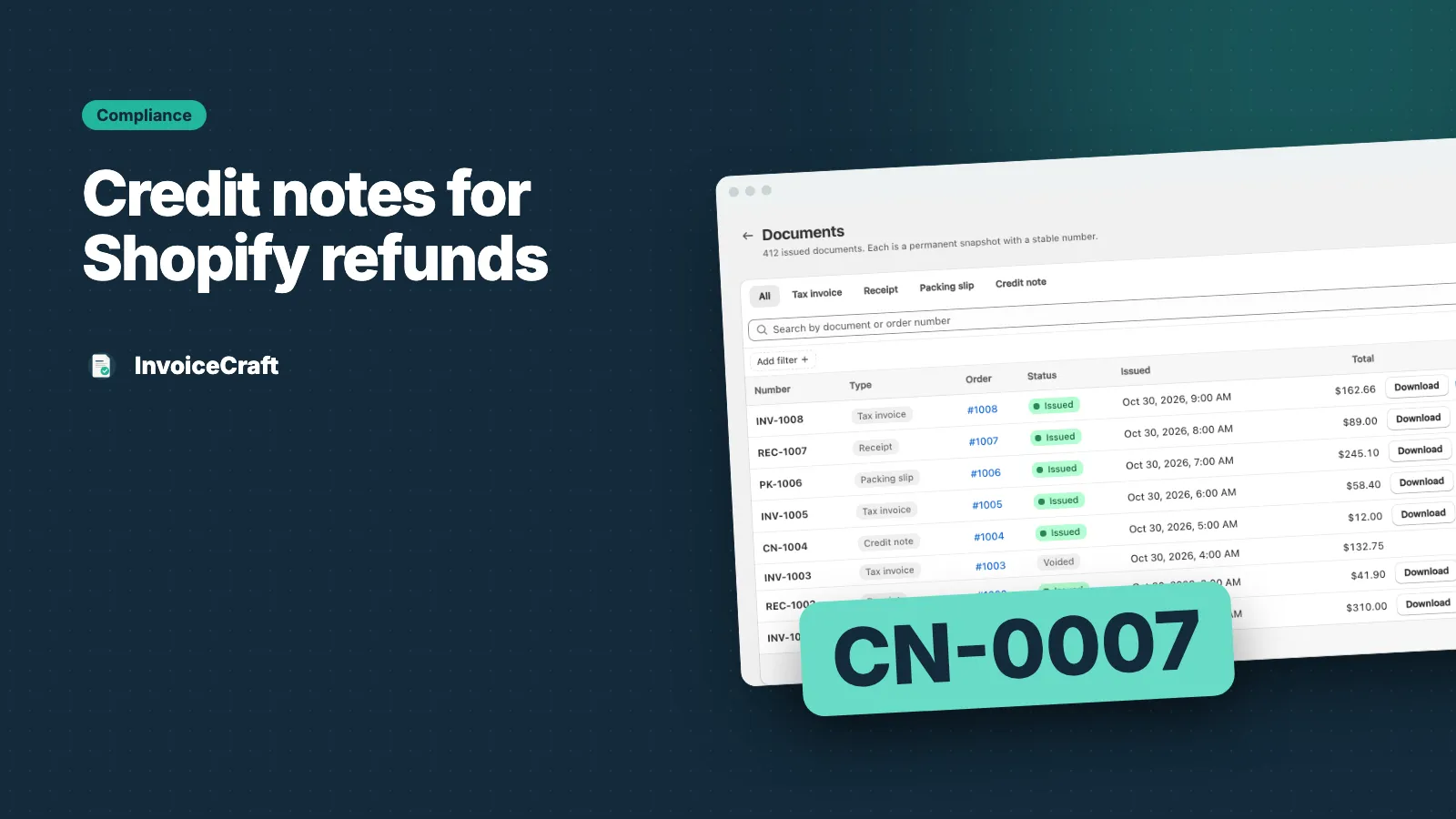
When you refund a Shopify order, the money goes back to the customer — but the invoice you already sent still says they owe the full amount. A credit note fixes that. It’s the document that records the refund and links it back to the original invoice, so your records add up.
What is a credit note?
A credit note (sometimes called a credit memo) is the opposite of an invoice. It reduces what the customer owes — or records what you’ve paid back — for a specific sale.
Once an invoice is issued, you shouldn’t edit or delete it. Tax authorities and accountants expect the original record to stay exactly as it was sent. Instead, you issue a credit note for the refunded amount. Together, the invoice and the credit note show the full story.
When do you need one?
Issue a credit note whenever you refund an order you’ve already invoiced:
- Full refund — the order was cancelled or everything was returned
- Partial refund — one item was returned, or you gave a discount after the sale
- Shipping refund — you refunded the shipping cost only
If an order is refunded more than once — for example two separate returns — each refund gets its own credit note.
What a credit note should show
- Its own credit note number, from a separate sequential series
- The date it was issued
- The original invoice number it relates to
- Your business details and the customer’s details
- The refunded items and quantities
- Refunded shipping and any adjustments
- The tax on the refunded amount
- The total credited
- The reason for the refund, if you have one
How to issue a credit note in InvoiceCraft
1. Issue the invoice first
A credit note should point back to an invoice. If no invoice has been issued for the order yet, InvoiceCraft warns you before creating the credit note, so you can issue the invoice first and link the two.
2. Refund the order in Shopify
Make the refund in Shopify as usual. Add a reason in the refund note — it appears on the credit note.
3. Issue the credit note
Open the order in InvoiceCraft and issue a credit note for the refund. It includes the refunded line items, shipping, adjustments, tax and the credit total, plus the original invoice number and the refund reason.
4. Many refunds? Use a bulk job
Select the orders and run a bulk credit note job. InvoiceCraft creates one credit note per refund on each order, and re-running a job never issues duplicates.
Numbering credit notes
Credit notes have their own number series, separate from invoices and receipts. Set the prefix — for example CN- — under Settings → Numbering. Like invoices, the numbers only move forward and are never reused. See sequential invoice numbering explained for why that matters.
Do credit notes count toward my plan?
No. Each order counts once a month, however many documents you create for it. Credit notes, re-downloads and extra documents for the same order are free. See pricing.
Summary
- Never edit an issued invoice — issue a credit note instead
- One credit note per refund
- It references the original invoice and has its own number
- Issue the invoice before the credit note so they’re linked
Selling in the UK or EU? Read what a Shopify VAT invoice needs to include.