 InvoiceCraft
Shopify packing slip template: what to include
· 3 min read
A packing slip has one job: make sure the right items go into the right box, and let the customer check the parcel when it arrives. A good Shopify packing slip template does that with as little noise as possible. Here’s what to put on it, what to leave off, and how to print a whole day of orders in one go.
What a packing slip is (and isn’t)
A packing slip goes inside the parcel. It lists what was shipped — not what was paid. That makes it different from an invoice, which is a financial record with prices, taxes and a sequential number. If you’re unsure which document you need, see packing slips vs invoices.
What to include on a Shopify packing slip
Order details
- Order number (for example
#1001) so the customer and your support team can find the order - Order date
Shipping details
- Shipping address
- Customer phone number — useful for couriers when an address is hard to find
Line items
- Product image — the fastest way for a picker to spot the right item
- Product title and variant (size, color)
- SKU — so the warehouse picks from the right bin
- Quantity
Optional extras
- Order note — gift messages or delivery instructions the customer left at checkout
- A barcode or QR code of the order number, so you can scan the slip instead of typing
- A short footer with your returns address or a thank-you line
What to leave off
Prices. Many parcels are gifts, and the person opening the box shouldn’t see what was paid. Prices also make the slip longer and harder for a picker to read. Tax breakdowns and payment details belong on the invoice, not in the box.
Setting up the template in InvoiceCraft
InvoiceCraft has a separate template for packing slips, so changing it never affects your invoices.
- Open Templates and choose the packing slip template, or create one from the gallery.
- Pick a layout. Compact fits more lines on a page, which helps for orders with many items.
- Choose your columns: image, title, SKU, variant and quantity. Price, discount and tax columns aren’t available on packing slips, so prices can’t appear by mistake.
- Turn on the fields you want — shipping address, customer phone, order note.
- On Starter and Pro, add a QR code or barcode of the order number.
- Add your logo and a footer line, check the live preview, and save.
Printing packing slips in bulk
Printing slips one order at a time is where most of the time goes. Instead:
- Open Orders and filter to what you’re shipping today — for example the Unfulfilled view.
- Select the orders.
- Choose Print packing slips.
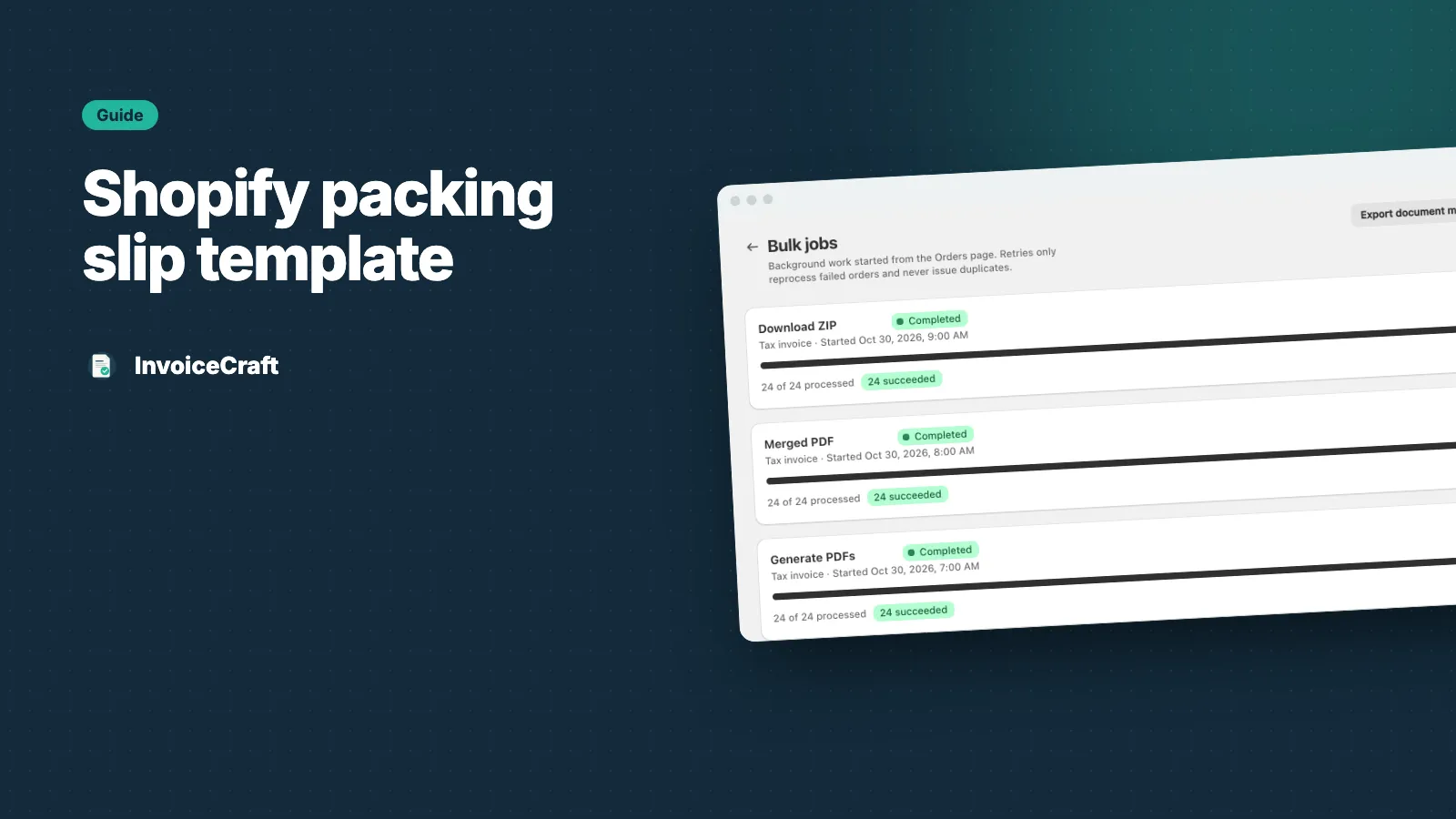
You get one merged PDF ready to send to the printer (Starter and Pro), or a ZIP of individual PDFs on any plan. Bulk jobs handle up to 10 orders on Free, 100 on Starter and 500 on Pro, and you can track or retry each job from the jobs list.
Packing slips are free to re-download. An order only counts once a month on your plan, no matter how many documents you create for it. See pricing for details.
Quick checklist
- Order number and date
- Shipping address and phone
- Image, title, variant, SKU and quantity
- No prices
- Optional: order note, barcode, returns info
- Printed in one batch, not one by one
Want to see it on your own orders? InvoiceCraft is free for 25 orders a month.